

<
Blog post
How to add a page to a menu in WordPress?
Neerav Mehta
Founder & CEO
After you have designed your pages, you need to place them in a menu together so viewers can find the right content faster. Follow these steps to add pages to your menu.
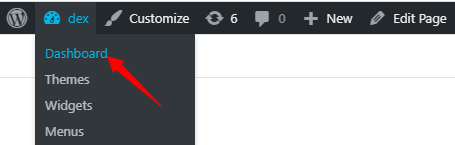
- Open the Dashboard from the top left on your website.
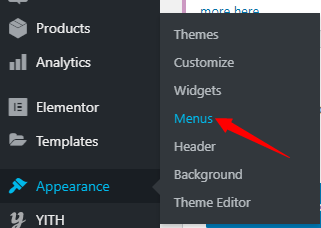
- Navigate to the left sidebar and scroll down to Appearance. Hover your cursor over it and click on Menus.
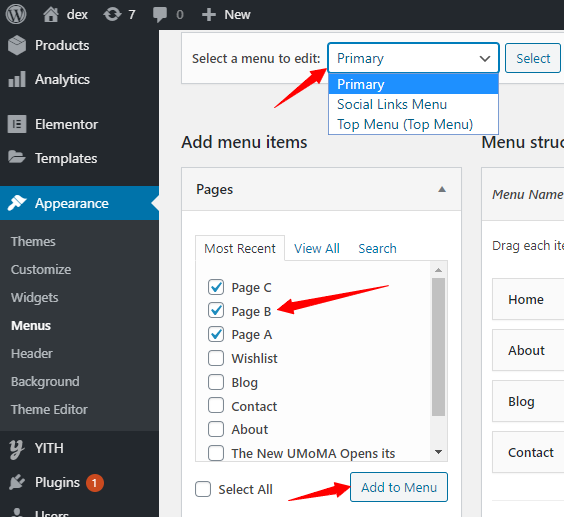
- On the top, click in front of Select Menu to edit, and a drop-down list will appear. Select the menu where you want to add your pages. Next in the Pages column, select the pages you want to add, and finally click on Add to menu.
- You’ll see your pages added. Now drag and drop your pages in the order you want them to appear in. On the bottom, check the Desktop Horizontal Menu box. After finalizing the order of pages, simply click on Save Menu, and you’re all done.
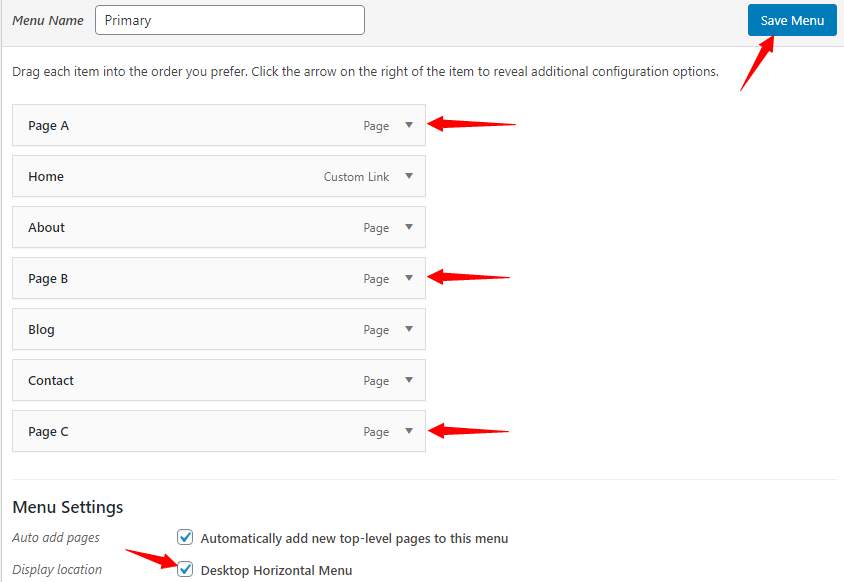
After saving, you’ll the menu is updated in the exact order you set.


Neerav Mehta
Founder & CEO
Neerav Mehta is the Founder & CEO of Red Crackle. With sterling qualities, Neerav’s technological acumen is firing a generation of progressive companies on the digital path. With an undergraduate degree in Electrical Engineering from India's most prestigious institution IIT Bombay and having spent seven years developing and contributing to the launch of AMD's innovative line of computer products, Neerav founded Red Crackle where he is lauded for his dynamic and innovative genius.



Let’s get you started!