

<
How to theme Drupal 8 views by overriding default templates
Neerav Mehta
Founder & CEO
In this post, you will learn how to theme Drupal 8 views by overriding default views templates and use our own markup to build an accordion (based on bootstrap 3 accordion).
We will begin by identifying a custom theme for our newly installed Drupal 8 site and add bootstrap 3 css and javascript files.
This is all we need to create a new theme.
bootstrap-theme.min.css │ └── bootstrap.min.css └── js └── bootstrap.min.js
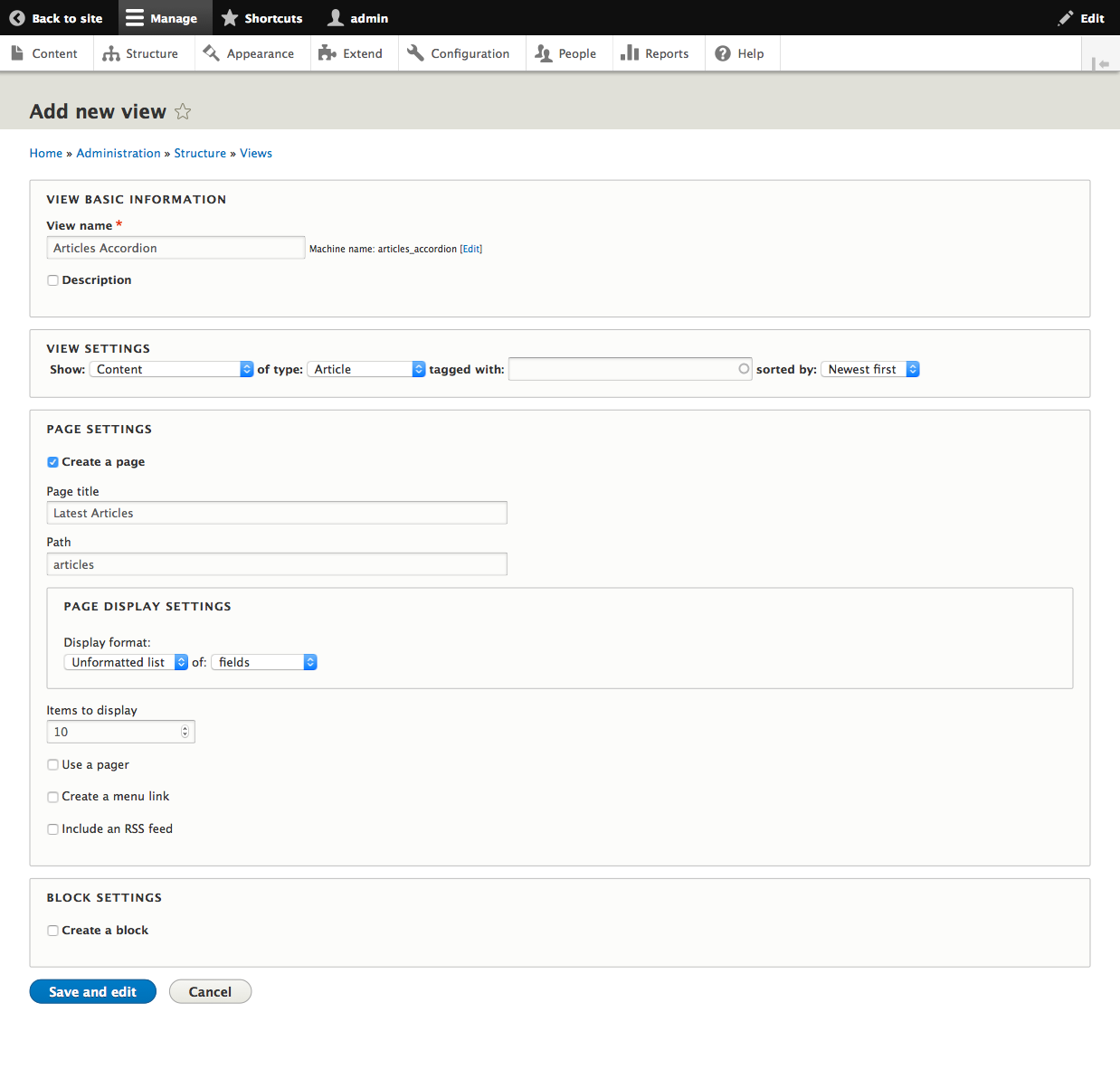
Then we will create a new view from "admin/structure/views/add" to show latest added articles.
- View basic information: We will name our view "Articles Accordion" (machine name: "articles_accordion").
- View settings: Choose (Show: Content), (of type: Article) and (sorted by: Newly first).
- Page settings: Check "Create a page" and set "Page title" and "Path" to your liking. Under "Page display settings" choose (Display format: Unformatted list), (of: fields).
- Click "Save and edit"
Here is a screenshot for our view initial settings:
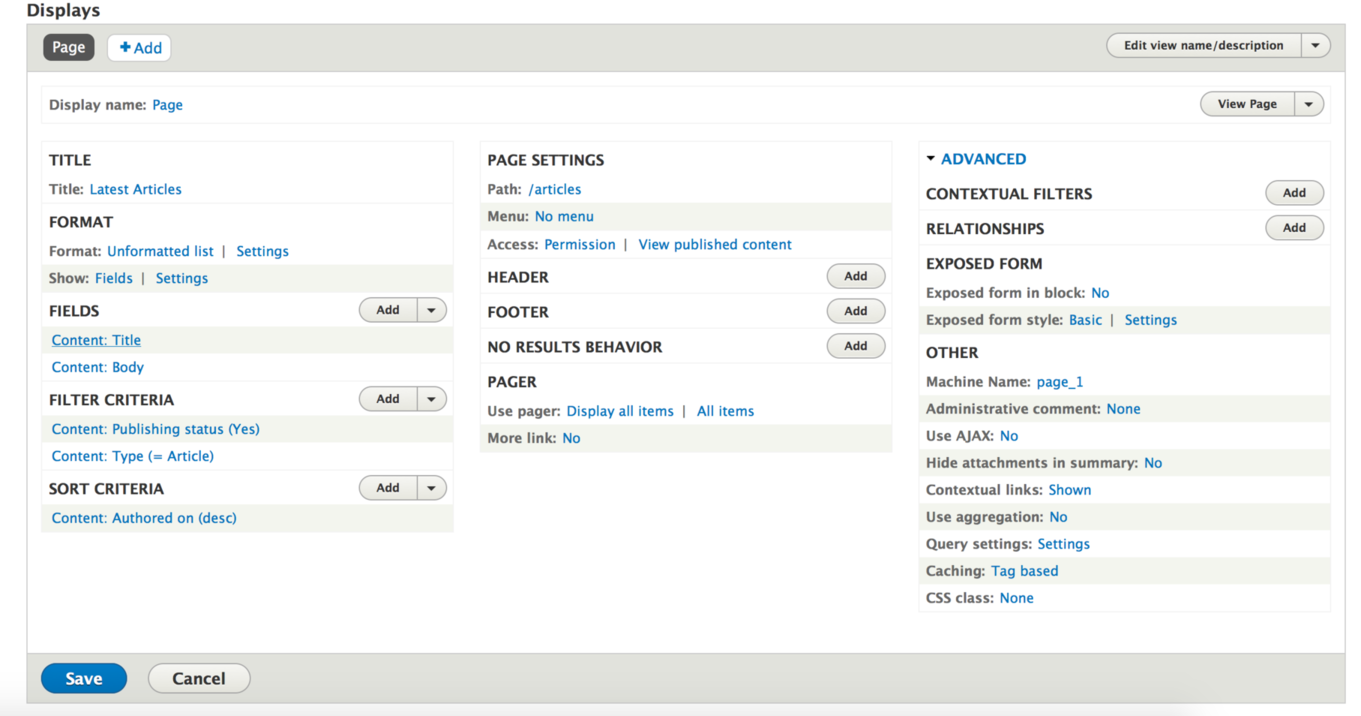
After saving the view we will click on "Content: Title" and uncheck "Link to the Content", then add the "Body" field.
Here is a screenshot for the view final settings:
Understanding Views Templates
Views default templates are located under "/core/modules/views/templates/" folder.
Each view uses minimum of two templates:
- The first template is "views-view.html.twig". This template is used for all views and contains the layout for the view. (view content, header, footer, exposed form and attachments)
- The second template is the style template. The default used template will vary based on the applied view style (grid, table, html list or unformatted).
- Grid: views-view-grid.html.twig
- Table: views-view-table.html.twig
- HTML List: views-view-list.html.twig
- Unformatted: views-view-unformatted.html.twig
- The third template is "views-view-fields.html.twig". This template is used only if the view row style is set to "Fields". This template is responsible for looping through available fields and print fields wrappers, labels and markup.
- The fourth template is "views-view-field.html.twig". This template is used only if the view row style is set to "Fields". This is the last template and is responsible for printing each field markup.
Naming Views Templates
Each type of the view templates above can be overridden with a variety of names. The template name is a concatenation of (base template name, view machine name, view display type and view display id - separated by 2 hyphens "--").
The following are the possible template names sorted by precedence:
- [base template name]--[view machine name]--[view display id].html.twig
- [base template name]--[view machine name]--[view display type].html.twig
- [base template name]--[view display type].html.twig
- [base template name]--[view machine name].html.twig
- [base template name].html.twig
For example; If we want to override "views-view.html.twig" template for our view, the following template names are valid:
- [base template name]--[view machine name].html.twig
- views-view--articles-accordion--page.html.twig
- views-view--page.html.twig
- views-view--articles-accordion.html.twig
- views-view.html.twig
Building Our Bootstrap Accordion
To build our version of bootstrap accordion, we will need to override "views-view-unformatted.html.twig" (because this is the style in use) and "views-view-fields.html.twig".
The easiest way to get started is to copy the templates from /core/modules/views/templates folder into our theme folder and then rename "views-view-unformatted.html.twig" to "views-view-unformatted--articles-accordion--page-1.html.twig" and "views-view-fields.html.twig" to "views-view-fields--articles-accordion--page.html.twig"
{% for row in rows %}
  {% set row_classes =
    [ default_row_class ? 'views-row', 'panel', 'panel-default', ]
  %}
{{ row.content }}
{% endfor %}

{{ fields.title.content }}
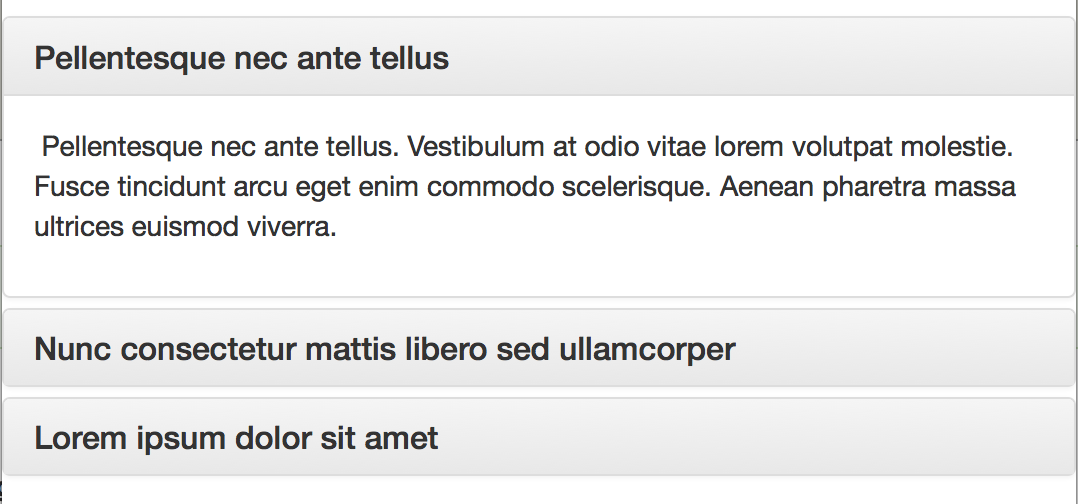
This is how how our accordion looks like.

Neerav Mehta
Founder & CEO
Neerav Mehta is the Founder & CEO of Red Crackle. With sterling qualities, Neerav’s technological acumen is firing a generation of progressive companies on the digital path. With an undergraduate degree in Electrical Engineering from India's most prestigious institution IIT Bombay and having spent seven years developing and contributing to the launch of AMD's innovative line of computer products, Neerav founded Red Crackle where he is lauded for his dynamic and innovative genius.


Let’s get you started!